Open your Android Gallery for a second and scroll back a year or two. The birthday video your cousin sent on WhatsApp. Why does it look like it’s being shot through a solid wall?
That grainy concert video you shot, or that old 720p video from your last device? Turns out, Android phones can shoot great videos, but as you share, save, and compress them, your best moments can also become bland and blurry.
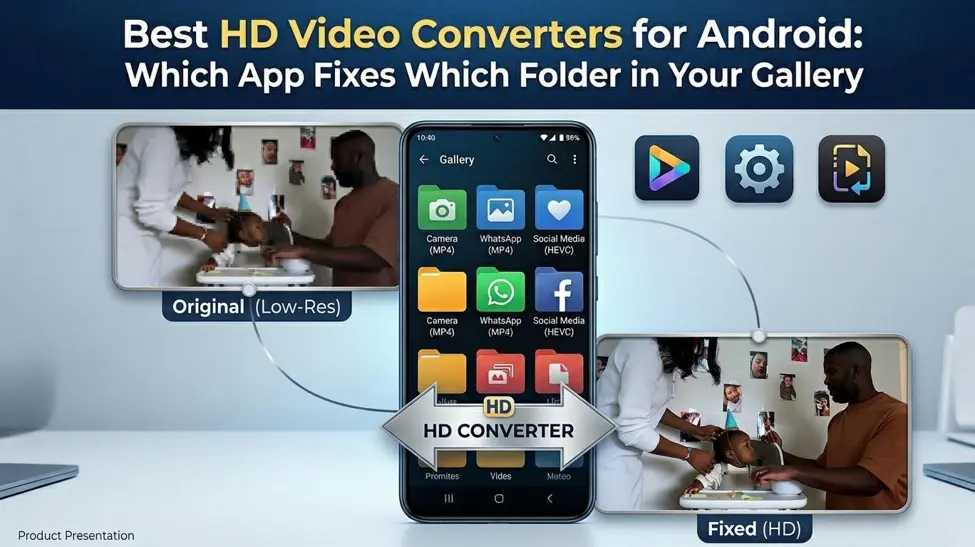
HD video converters can help you turn your blurry clips into gorgeous 1080p, 2K, or 4K. The problem? Some just increase resolution, but some use AI to focus details, reduce grain, and color noise. We also tested real phone clips using two standout options, Vmake Labs and Wink, to see what each could fix.
Converter or Upscaler? One Thing to Know First
However, not all HD video converters improve your video quality. A basic converter simply trades your clip off to a larger size. The file will be larger, but the quality is basically unchanged.
A blurry 480p video exported in 4K? It will still be blurry.
On the other hand, an AI HD converter is more than just a simple upscale. It can also sharpen the edges, decrease the grain, clean compression blocks, and improve the colors. But don’t hold your breath — no app can resurrect information that simply wasn’t there.
So, what is our tip?
Always send the original video and avoid the social media compressed version. When it comes to WhatsApp, it is better to send a video as a document.
Vmake Labs — Best for the WhatsApp Video Folder
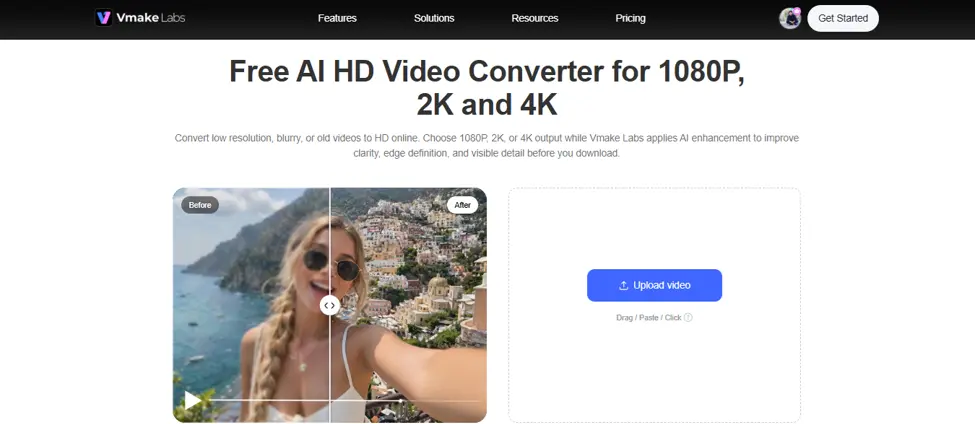
Do you have a WhatsApp folder filled with blurry birthday clips, forwarded videos, and low-res memories? We feel you! But worry not, Vmake Labs can help you get them all into shape. Here’s the thing – you won’t have to install anything since it works directly in Chrome on your Android device. It’s especially effective for those blocky, low-res clips that are stuck in WhatsApp, Telegram, and Downloads. Give it a go!
Want to improve your video? Vmake Labs 4K HD video converter will help! You can simply upload your videos, select 1080p, 2K, or 4K to improve, and then download the better video.
So how is this different? Well, basically, when converting, it uses AI to increase the sharpness and definition of edges, as well as Smart Detail and Color Recovery to bring back textures, natural colors, and dimensionality, and remove compression artifacts. And if you’ve got a bunch of clips, don’t worry! Batch upscaling is here.
Wink — Best for the Camera and Night Folder
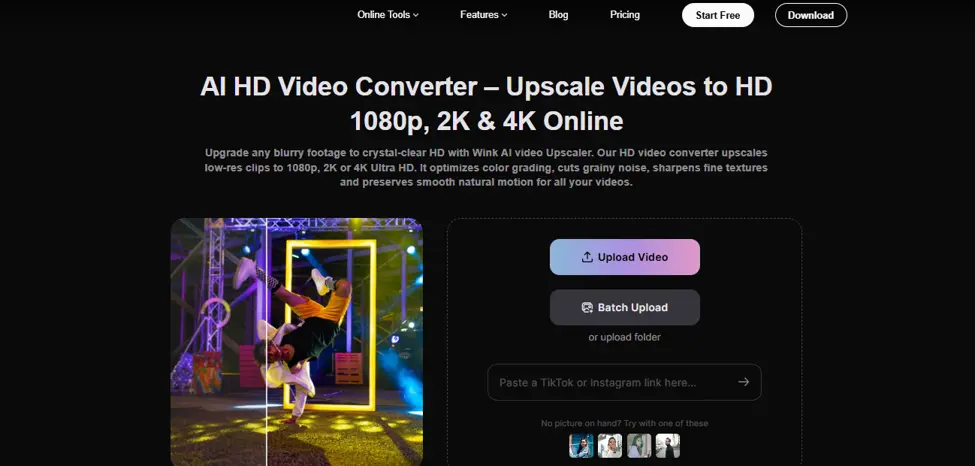
Have you ever filmed a concert or a lively night out and later watched the video only to find it was hard to see? Been there! Well, here’s the truth: Wink is a perfect tool to brighten your dark, noisy Camera videos. It’s especially useful for low-light recordings, travel videos, and older phone footage that needs a little cleanup.
Want to turn your video up a notch? Look at the AI HD Video Converter for 1080p, 2K, and 4K video output. The thing is: The AI Scene-Specific Enhancement can optimize lighting, colors, sharpness, and textures for individual scenes.
In addition, the Video Denoiser removes the grain, and the AI Video Stabilizer will stabilize those shaky videos. You also get Video Color Correction, scaling enhancement levels, and Batch HD Video Conversion so you can do tons of videos all at once. Got a folder full of night-time videos? You don’t need to fix each one!
CapCut — Best for the Screen Recordings Folder (if you’re already editing)
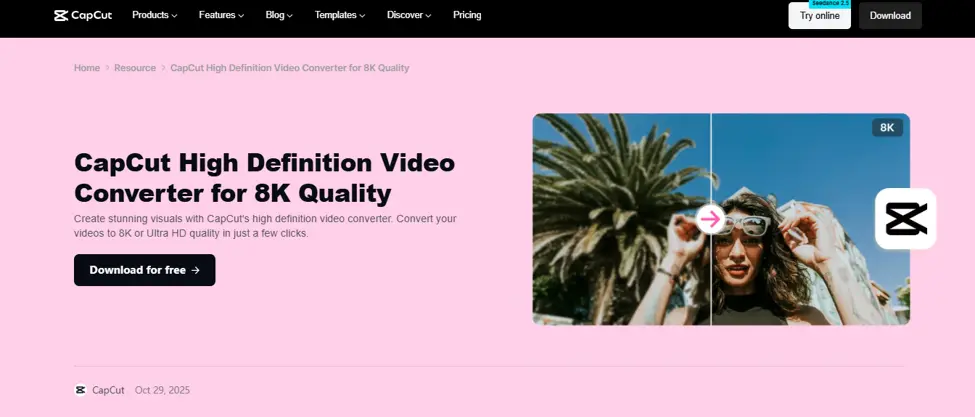
Have game videos, app demos, or video calling sessions taking up space in your Gallery? If you want to clean them up, then CapCut is perfect. The Android app simply offers a one-stop solution for trimming, tagging clips, adding text and effects, and enhancing video quality, all in one app.
Clean up dull or grainy footage with Video Quality Enhancement, Noise Reduction, and Color Correction. Auto Captions are great for tutorials, while Enhance Voice clarifies speech. Export to 1080p, 2K, 4K, and even 8K (based on your device and source footage). The drawback? Certain features are only available with a Pro subscription, and exporting to 4K will not fix blurry text or missing details.
The Clip We Tested
Test: The WhatsApp Clip (WhatsApp Video Folder)
We started with a birthday greeting video sent by WhatsApp. You know the kind: a dim room with faces that look a little blocky after compression.
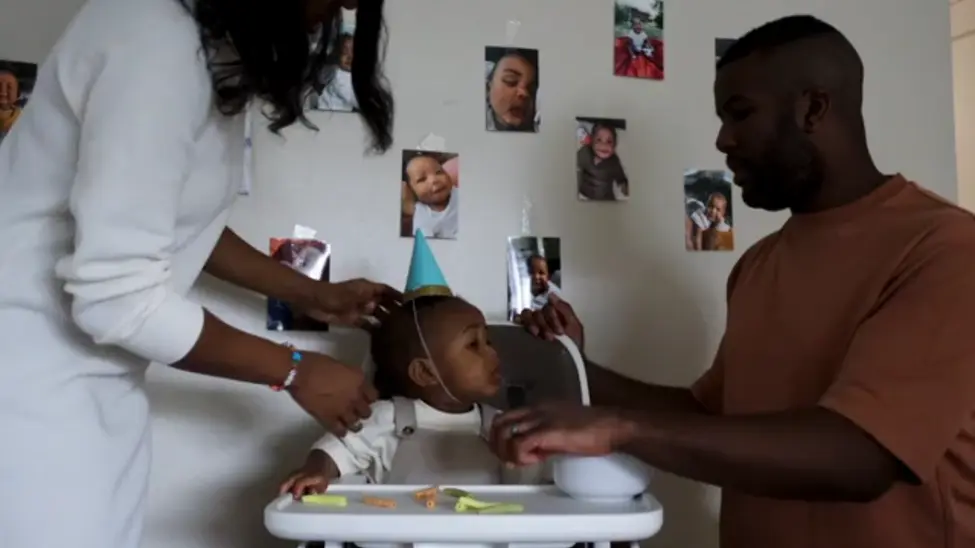
We played it back at the same 1080p output setting in Vmake Labs and Wink and watched the faces and objects.
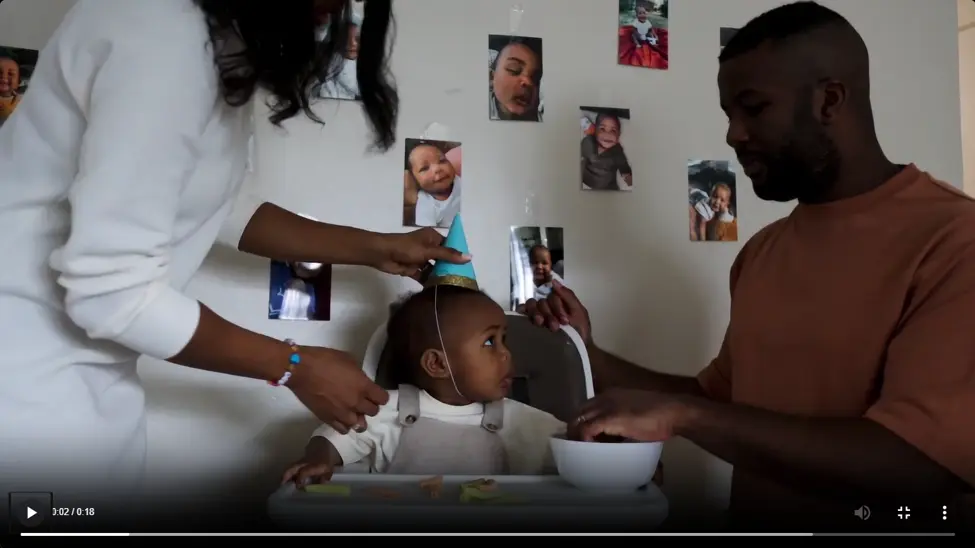
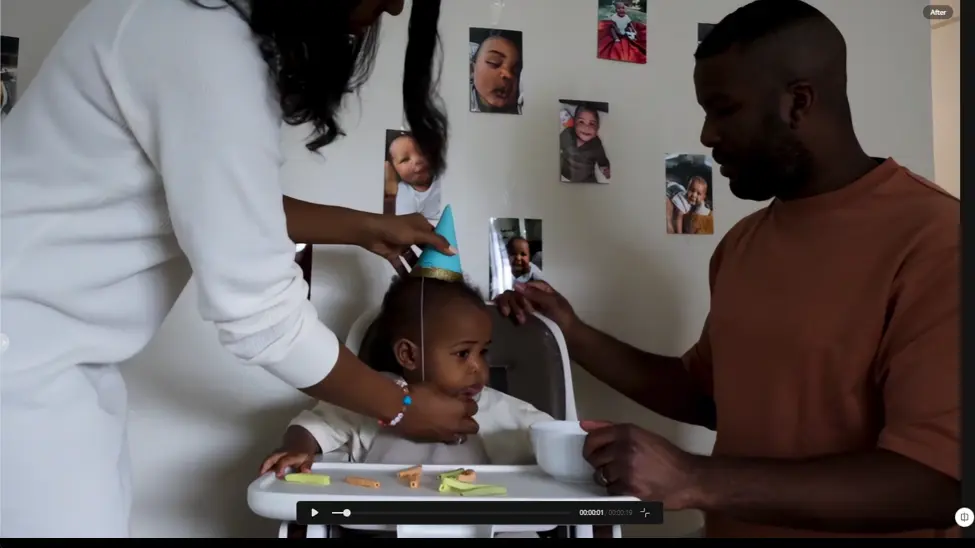
Vmake Labs focuses on removing compression artifacts and soft edges. We chose Wink for its noise reduction and scene-based adjustments. But the real deciding factor is simply which version preserves the naturalness of the faces.
Conclusion
Not all blurry videos are equal. Vmake Labs is best for compressed WhatsApp videos, and Wink is the way to go for grainy night videos and vintage camera footage. If you edit a lot of screen recordings already, you might want to give CapCut a shot.
What would we suggest? Start with a single clip that gets on your nerves, compare, and use the tool that improves appearance but doesn’t make it look unnatural. After all, the goal isn’t just a bigger video file. It’s a clearer memory worth keeping.