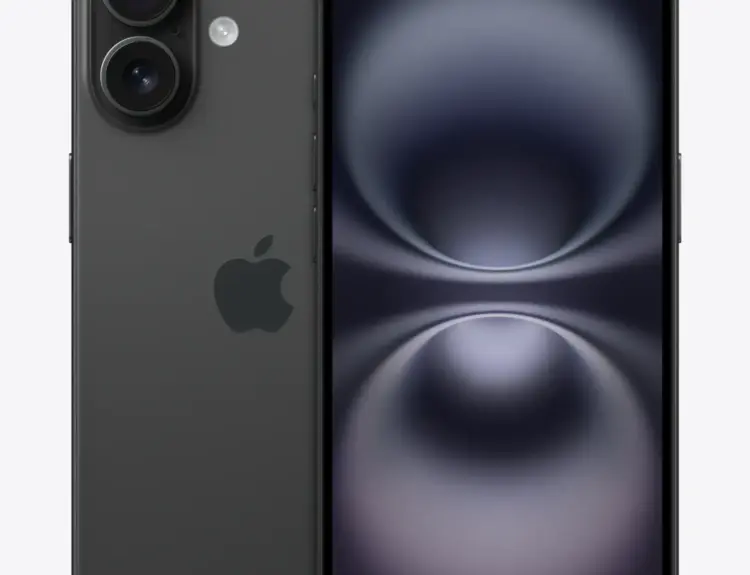
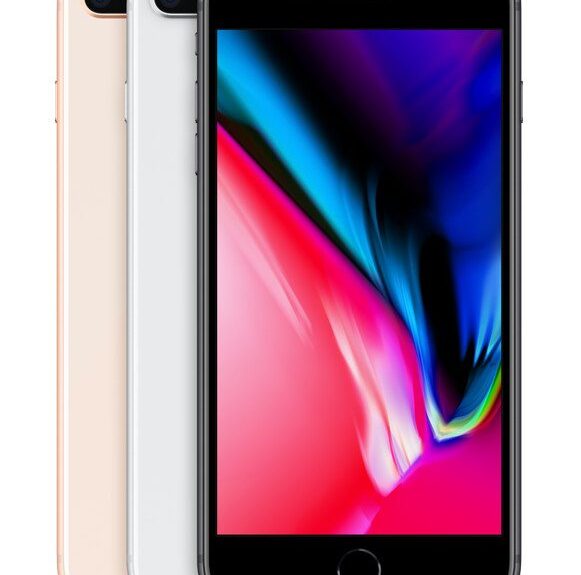
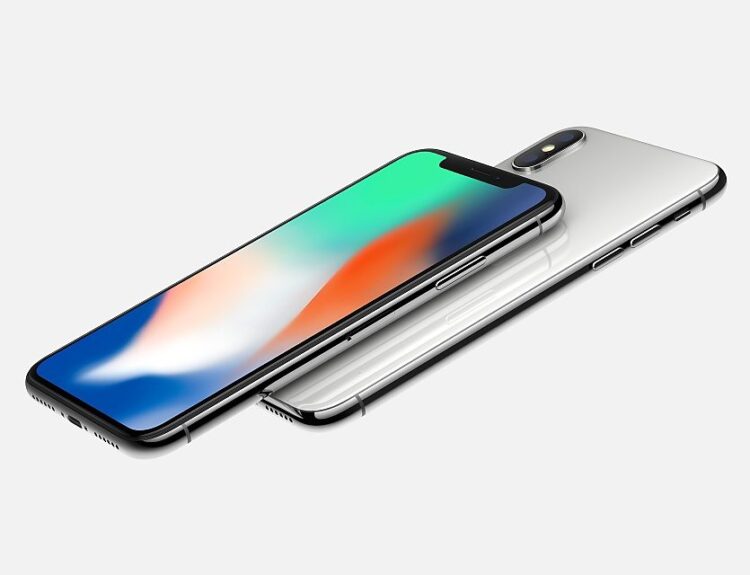
A great Apple desktop setup starts before you plug anything in. The right Mac should fit the way you work, the space you have, and the devices you use every day. Ports and displays may not sound exciting at first, but they shape your daily routine more than most people expect. They decide how many screens you can run, how clean your desk looks, how fast you can move files, and how often you need adapters.
Apple’s desktop lineup gives you several paths. The iMac keeps things simple with an all-in-one design. The Mac mini gives you a compact computer that works with your own monitor, keyboard, and mouse. The Mac Studio brings more connection options for demanding creative and professional work. The Mac Pro takes the biggest swing with tower-style expansion for specialized workflows. Continue reading to explore the Apple desktop ports, displays, and setup needs.
Start With Your Space
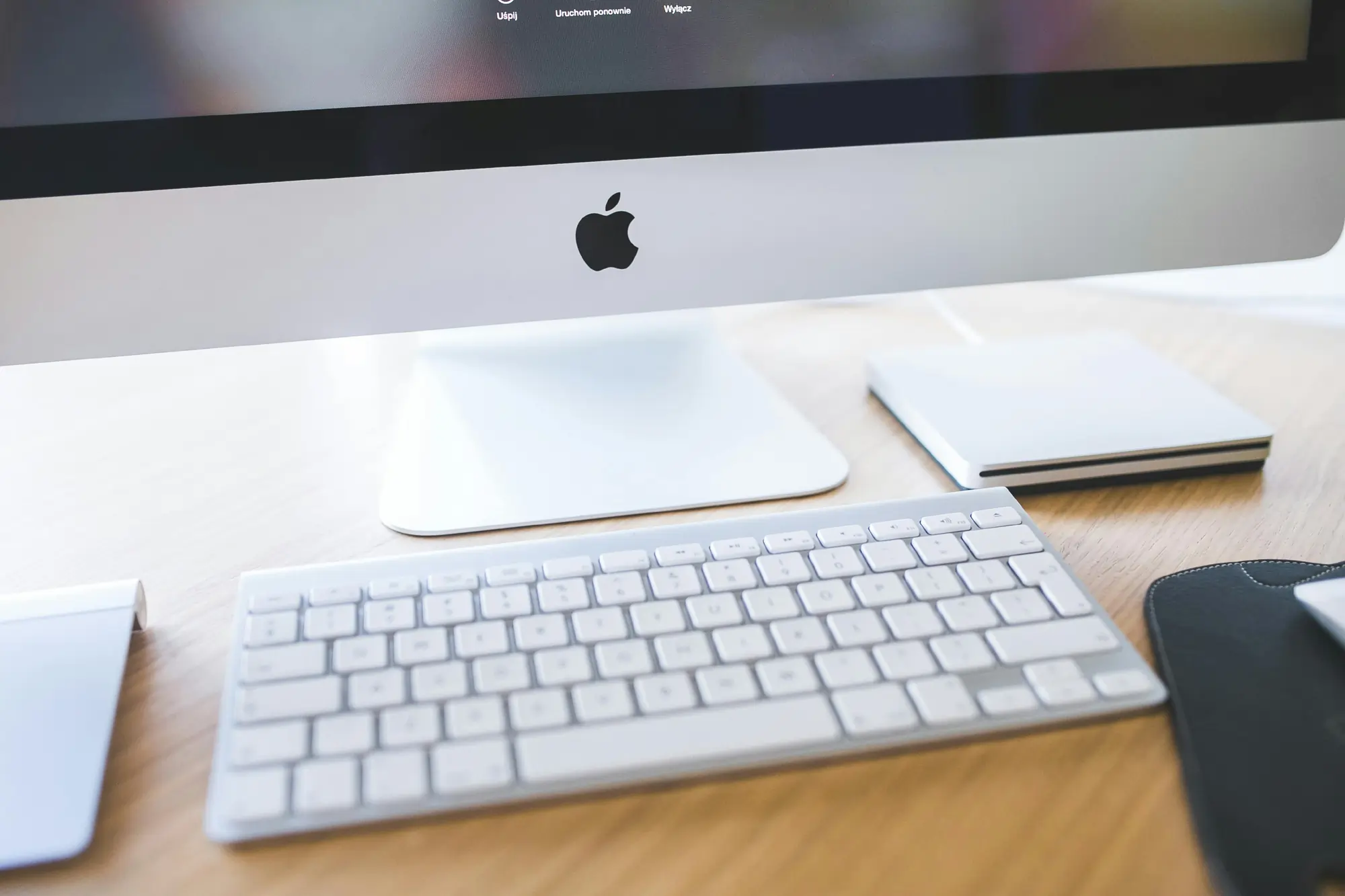
Your desk should guide your first choice. An iMac suits people who want a clean setup without a separate display tower. Apple integrates the screen, speakers, camera, microphones, and computer into a single slim design, so you only need room for the display, keyboard, and mouse.
A Mac mini works well when you already own a monitor or want to choose your own screen size. It takes up very little desk space, and you can place it under a monitor stand or beside an external drive. That flexibility helps when you want a tidy work area but don’t want an all-in-one computer.
A Mac Studio needs more room than a Mac mini, but it still keeps a compact footprint. It suits people who connect multiple drives, cameras, audio devices, and displays. A Mac Pro needs the most space, and it makes the most sense when your setup includes PCIe cards, rack planning, or tower access.
Check Your Ports
In many everyday situations, ports control your setup more than the processor does. Before comparing Apple desktop models, consider every device you connect. Include your monitor, backup drive, camera card reader, printer, audio interface, Ethernet cable, external SSD, drawing tablet, and charging cable.
The Mac mini gives you two front USB-C ports and a front headphone jack. On the back, the M4 version includes Ethernet, HDMI, and three Thunderbolt 4 ports, while the M4 Pro version includes Ethernet, HDMI, and three Thunderbolt 5 ports. Apple also lets buyers configure Ethernet up to 10Gb on the Mac mini, which helps people move large files across a local network.
The iMac keeps its connections simpler. The 2-port model gives you two Thunderbolt / USB 4 ports, a headphone jack, and configurable Gigabit Ethernet. The 4-port model gives you four Thunderbolt 4 ports, a headphone jack, and Gigabit Ethernet. That setup works well for a clean desk, but people with several wired accessories may want a dock.
The Mac Studio adds serious connection room. The current Mac Studio includes four Thunderbolt 5 ports, two USB-A ports, HDMI 2.1, 10Gb Ethernet, and a headphone jack on the back. The front varies by model, with the M4 Max offering two USB-C ports and an SDXC card slot, while the M3 Ultra offers two Thunderbolt 5 ports and an SDXC card slot.
Plan Your Displays
Displays deserve careful thought because Apple desktops handle external screens in different ways. A single monitor setup feels easy, but two, three, or more screens can create limits fast.
The iMac includes a 24-inch 4.5K Retina display with 4480-by-2520 resolution, 500 nits of brightness, Wide Colour P3, and True Tone. The 2-port iMac supports one external display up to 6K at 60Hz. The 4-port iMac supports up to two external 6K displays at 60Hz, or one 8K display at 60Hz.
The Mac mini gives you more flexibility with your display choice. The M4 model supports up to three displays, including two 6K displays over Thunderbolt and one display up to 5K over Thunderbolt or 4K over HDMI. The M4 Pro model also supports up to three displays, with support for three 6K displays at 60Hz over Thunderbolt or HDMI. It can also drive one 6K display and one 8K display, depending on the connection mix.
The Mac Studio handles larger screen setups. The M4 Max model supports up to five displays, while the M3 Ultra model supports up to eight displays. Apple also lists support for 8K at 60Hz or 4K at up to 240Hz over HDMI, which gives video editors, animators, and multitasking-heavy users much more headroom.
The Mac Pro also supports up to eight displays. Apple lists support for eight 4K displays at 60Hz, six 6K displays at 60Hz, or three 8K displays at 60Hz. That kind of display support fits production rooms, media walls, and specialized professional setups better than casual home offices.
Think About Adapters
Apple desktops rely heavily on USB-C and Thunderbolt, so many setups still require adapters. HDMI works with many monitors and TVs, but older displays may need DisplayPort, Mini DisplayPort, DVI, or VGA adapters. External drives may use USB-A, and many microphones, printers, webcams, and security keys still use older connectors.
A dock can clean up the desk if you connect the same accessories every day. Choose one with the ports you use, not the ports that sound impressive. If you use SD cards, pick a dock with a fast card slot. If you edit video from external SSDs, prioritize Thunderbolt speeds. If you run a wired office, choose a dock with reliable Ethernet.
Cable length also affects the setup. Short cables can force awkward placement, while long ones can add clutter. A simple monitor riser or under-desk tray can hide a dock, backup drive, and extra cables without making the Mac hard to reach.
Match the Mac to the Work
Every Apple desktop can handle common tasks like email, documents, browsing, streaming, and video calls. The difference shows up when your work adds more screens, more accessories, larger files, and longer creative sessions.
An iMac works best for people who want a polished desktop with minimal setup decisions. It fits home offices, front desks, classrooms, family spaces, and creative users who like Apple’s built-in display. Choose the 4-port version if you already know you’ll connect multiple accessories or external screens.
A Mac mini works best for people who want strong flexibility at a smaller size. It suits students, home offices, developers, light creative work, and anyone who wants to pick a monitor separately. Choose M4 Pro if you need faster Thunderbolt, heavier multitasking, or a stronger multi-display setup.
A Mac Studio fits users who need more ports, more display support, and more performance headroom. Video editors, photographers, musicians, designers, and engineers can benefit from the extra connection options because high-speed storage, card readers, audio equipment, and multiple displays can all stay connected.
A Mac Pro serves a narrower audience. Its PCIe expansion, larger enclosure, and dual 10Gb Ethernet ports make sense for workflows that need internal expansion or fixed studio infrastructure. Most buyers don’t need it, but the right professional setup can make full use of it.
Build Around Daily Habits
The best setup supports the way you work without forcing you to rearrange cables every day. Put your most-used ports within reach. Keep backup storage connected but out of the way. Place speakers, microphones, and webcams where they perform well instead of where leftover desk space happens to exist.
Display height also changes comfort. Raise the screen so your eyes meet the upper third of the display. Place the keyboard and mouse close enough that your shoulders stay relaxed. If you use two monitors, place the main screen directly in front of you and angle the second screen toward your chair.
You’ll also want room to grow. Buy for the devices you own now, plus the next one or two accessories you expect to add. That approach prevents a messy chain of hubs and adapters later.
Bring It Together
Apple desktop setups work best when the ports, displays, and workspace all fit the same routine. The iMac gives you a clean, all-in-one experience. The Mac mini gives you compact flexibility. The Mac Studio gives you more room for professional accessories and displays. The Mac Pro gives specialized users the most expansion.
Don’t choose by power alone. Count your devices, map your displays, check your desk space, and think about how often you plug things in. When your Mac matches your setup needs, the whole workstation feels smoother, cleaner, and easier to use every day.