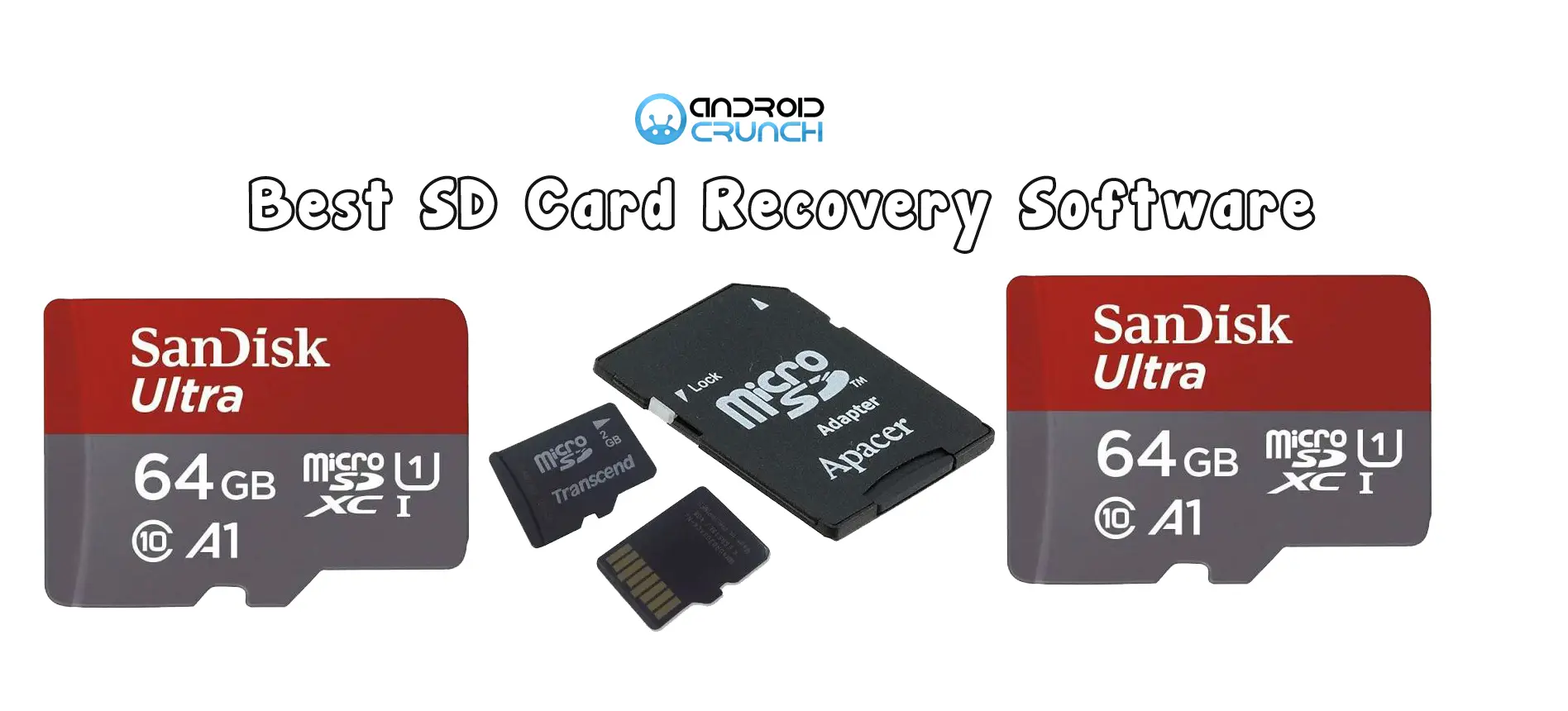
A blank SD card after a shoot, a trip or a school event is stressful, but the photos are often still on the card. When files are deleted or a card is formatted, the data usually stays on the card until something overwrites it. The right SD card recovery software can read that leftover data and rebuild your files.
This guide compares seven widely used tools so you can pick one quickly. We looked at supported media, file formats, platform support, previews and how each tool handles formatted or corrupted cards.
What makes SD card recovery software worth using
- Supports your card and file types: SD, microSD, SDHC and SDXC, plus the formats you shoot, such as JPEG, HEIC, camera RAW, MP4 and MOV.
- Scans without writing to the card: A read-only scan keeps your remaining data safe.
- Lets you preview before you pay: You should see thumbnails or playable previews of what was found.
- Handles formatted and RAW cards: Deep scan modes find files by signature when the file index is gone.
- Works on your system: Check for Windows and Mac versions if you use both.
The 6 best SD card recovery tools
1. Stellar Photo Recovery: best for photographers and videographers
Stellar Photo Recovery is built for photos, videos and audio from camera and phone memory cards. It recovers files from deleted, formatted, corrupted or inaccessible SD cards, including SDHC and SDXC, and supports a wide range of camera RAW formats alongside JPEG, TIFF, PNG and common video formats.
- Strengths: Simple three-step flow (select the drive, scan, preview and recover), deep scan for formatted cards, disk imaging to work from a copy of a failing card, and the option to save scan information and resume later.
- Editions: Higher editions add repair for corrupted photos and videos, which helps when files come back but will not open.
- Platforms: Windows and Mac.
- Limitation: The free trial lets you scan and preview unlimited files, but saving recovered files available for free is up to 10 files. For more than 10 files, you need a paid license.
2. EaseUS Data Recovery Wizard: best all-rounder
A general-purpose tool for Windows and Mac that recovers from SD cards, USB drives and hard drives. It covers deletion, formatting and RAW drive errors. It is not photo-specific, so it suits people who also want one tool for other drives. The free version limits how much data you can recover.
3. Recuva: best simple free option for Windows
Recuva is a lightweight Windows tool with a free version. It is fine for recently deleted files on a healthy card, but it is less suited to formatted or badly corrupted cards and has no Mac version.
4. PhotoRec: best free open-source option
PhotoRec is free and runs on Windows, Mac and Linux, and it can read damaged file systems. The trade-off is usability: it works from a command line (QPhotoRec offers a basic window), and recovered files usually lose their original names and folder structure.
5. Wondershare Recoverit: best for guided recovery with repair add-ons
Recoverit offers Windows and Mac versions, a guided flow and optional video repair. It targets general users who want a step-by-step interface and extra repair features.
6. R-Studio: best for advanced users
R-Studio supports many file systems and offers detailed technical controls. It is powerful but has a steeper learning curve, which is more than most people need for a simple card recovery.
Quick comparison
| Tool | Platforms | Free option | Photo/RAW focus | Best for |
| Stellar Photo Recovery | Windows, Mac | Free trial (scan and preview) | Yes | Photographers, formatted cards |
| EaseUS Data Recovery Wizard | Windows, Mac | Limited free recovery | General | All-round use |
| Recuva | Windows | Free version | Basic | Simple deletions |
| PhotoRec | Windows, Mac, Linux | Fully free | Signature-based | Technical users |
| Wondershare Recoverit | Windows, Mac | Free scan/preview | General | Guided recovery |
| R-Studio | Windows, Mac, Linux | Demo | General | Advanced users |
Features and limits change between versions, so check each vendor’s page for current details.
How to recover files from an SD card (steps that apply to any tool)
- Stop using the card straight away and remove it from the camera or phone.
- Connect it to your computer with a card reader.
- Install the recovery software on your computer’s drive, never on the SD card.
- Run a quick scan, then a deep scan if the files do not appear.
- Preview the results, then save the files to a different drive.
Which one should you pick?
- Shooting photos or video and need RAW and video support: start with a photo-focused tool such as Stellar Photo Recovery.
- Just deleted a few files on Windows and want free: try Recuva or PhotoRec first.
- Want one tool for many drives: EaseUS or Disk Drill.
- Comfortable with technical tools: PhotoRec or R-Studio.
If the card is cracked, water-damaged or not detected by any computer, software will not help, and a professional lab is the realistic option.
Final thoughts
The best SD card recovery software supports your card and file types, scans without writing to the card, and lets you preview before you pay. Act quickly, avoid formatting, and always save recovered files to a different drive.