Buying a refurbished MacBook is a smart way to get the Apple experience without the premium price tag. You get a powerful, high-quality laptop that has been professionally inspected, repaired, and certified to work like new. This strategy not only saves you money but also gives a perfectly good device a second life, which is a fantastic choice for the environment.
When your refurbished MacBook arrives, you might wonder what to do next. Taking a few extra steps right from the start can make a significant difference in its longevity and performance. Proper care helps you get the most out of your purchase and keeps your machine running smoothly for years to come. From checking its physical condition to managing battery health and understanding your warranty, these initial actions set the foundation for a great user experience.
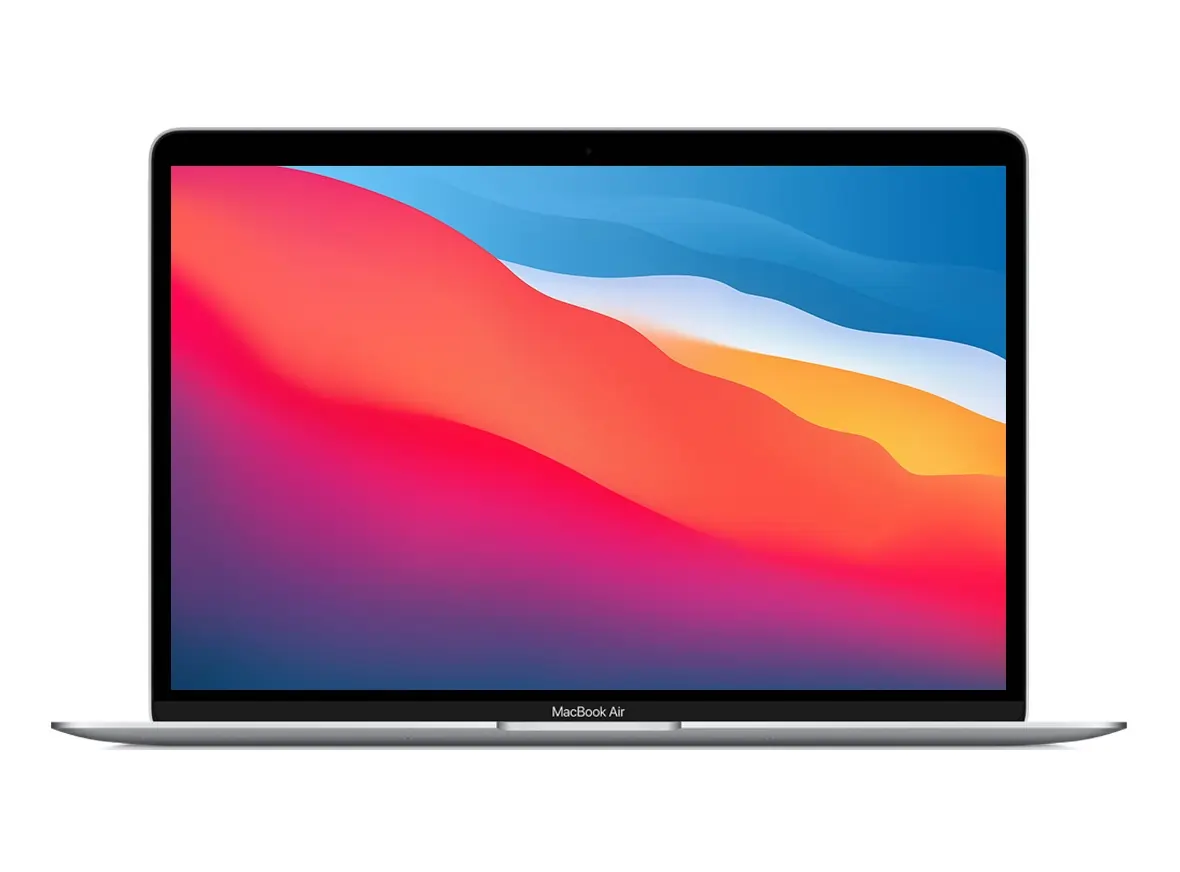
This post will walk you through essential tips for caring for your refurbished MacBook. You will learn how to inspect your new device, test its hardware, optimize its software, and maintain it properly. Following these steps will help you protect your investment and enjoy all the benefits of your like-new Apple laptop.
Checking the Physical Condition
The first thing you should do when you unbox your refurbished MacBook is give it a thorough physical inspection. Begin by inspecting the outer casing for scratches, dents, or scuffs. While refurbished products might have minor cosmetic imperfections, they should not have significant damage that could affect the device’s integrity. Run your fingers along the edges and corners to feel for any rough spots or structural issues.
Next, open the laptop and inspect the screen for any dead pixels or discoloration. A simple way to do this is to display a solid white or black background, which makes inconsistencies easier to spot. Check the keyboard to see if all keys are present and sit evenly. Press each key to feel its response; they should not stick or feel loose. Also, examine the trackpad for any signs of wear and test its clicking mechanism.
Finally, inspect the ports, like the USB-C port and the headphone jack, for any debris or damage. A careful initial check confirms you received a product in the condition you expected.
Testing Hardware Functionality
After assessing the physical condition, the next step is to test the hardware. Power on your MacBook and listen for the startup chime and the sound of the internal fan. These sounds can indicate if the system is starting up correctly. Once it boots, connect to a Wi-Fi network to test the wireless card. Open a web browser and visit several websites to test the connection speed and stability.
You should also test all the ports. Plug a compatible device into each USB-C port to verify it provides power and transfers data. If your model has a headphone jack, plug in a pair of headphones to check the audio output. Test the built-in speakers by playing some music or a video.
Similarly, test the webcam and microphone by making a video call or recording a short video. Running these simple hardware tests confirms that all the internal components are working as they should.
Software and Updates
Once you have confirmed the hardware is in good shape, focus on the software. Your refurbished MacBook should come with a fresh installation of macOS. Go to “System Settings” and then “General” to find the “Software Update” section. Check for and install any available macOS updates. Keeping your operating system up to date provides you with the latest features, security patches, and performance improvements. Apple regularly releases updates that protect your device from new threats.
After updating the operating system, you can begin installing the necessary applications. Visit the App Store or the developers’ websites to download your essential software. This check is also a good time to set up your Apple ID and configure services like iCloud, which helps sync your data across devices. By taking care of software updates and installations early on, you establish a secure and efficient digital environment for your work and personal use.
Battery Health and Management
The battery is one of the most critical components of any laptop, and refurbished MacBooks are no exception. You can check your battery’s health by going to “System Settings,” selecting “Battery,” and then looking at the “Battery Health” status. A healthy battery should have a maximum capacity of at least 80 percent. If the capacity is significantly lower, it might not hold a charge for very long.
To extend the life of your MacBook’s battery, you can adopt some good habits. For instance, enabling “Optimized Battery Charging” in the battery settings helps reduce battery aging by learning your daily charging routine. The system delays charging past 80 percent until you need to use it on battery power.
You should also avoid exposing your MacBook to extreme temperatures, as both heat and cold can degrade the battery over time. Managing your battery properly from the start helps maintain its performance over the long term. Refurbished MacBooks are ideal for everyday users, and proper battery care ensures they remain even more reliable.
Cleaning and Maintenance Tips
Regular cleaning and maintenance will keep your refurbished MacBook looking and performing its best. Use a soft, lint-free microfiber cloth to wipe down the screen and exterior. For stubborn smudges, you can lightly dampen the cloth with water, but never spray liquid directly onto the laptop. Be gentle when cleaning the screen to avoid applying too much pressure.
Keeping the keyboard and trackpad clean is also important. You can use a can of compressed air to blow out any dust or crumbs from between the keys. Hold the can at an angle and use short bursts of air. For the trackpad and the surface of the keys, a slightly damp microfiber cloth will work well. Regularly cleaning your MacBook not only maintains its appearance but also prevents dust buildup that could affect its internal components over time.
Warranty and Support
Understanding the warranty and support options for your refurbished MacBook gives you peace of mind. Most reputable sellers provide a warranty that covers defects and hardware failures for a specific period. Before making a purchase, read the warranty terms carefully to understand what is covered and for how long. Keep a copy of your receipt and any warranty documentation in a safe place.
If you encounter an issue with your MacBook, contact the seller’s support team immediately. Having access to reliable customer support is a major benefit of buying from a trusted refurbisher. Some sellers also offer extended warranty plans for an additional cost, which can be a worthwhile investment if you want extra protection. Knowing your support options ahead of time saves you stress if you ever need to get your device serviced.
Enjoying Your MacBook for Years
By taking the time to inspect, test, and maintain your refurbished MacBook, you are setting yourself up for a long and positive experience. These simple steps help you get the most value from your purchase and keep your MacBook in excellent condition. Now that you have a reliable and powerful laptop, you can focus on all the great things you will accomplish with it.